Friday, 8 November 2013

Dynamics CRM 2013 Configuring Exchange Syncronization

With Dynamics CRM 2013 the Asynchronous service now provides server-side Exchange Synchronization allowing users to:

  • Synchronize contacts, tasks and appointments 
  • Process outgoing emails
  • Process incoming emails
    • Automatically tracking emails based on Correlation rules (smart matching or/and tracking token)
All this without the need for the CRM Outlook client.

In the past appointments could only be synchronized with the CRM Outlook client installed and configured, if you booked an appointment with multiple people the appointment would only appear in other users Outlook Calendar if those same users had the CRM client installed and synchronizing with CRM. With Exchange Synchronization you eliminate this need for the CRM client, appointments created by you that require multiple people get directly written to their exchange profile so you automatically get an appointment alert to accept or decline.

On this article I will walk-through how to set up Exchange synchronization with Dynamics CRM 2013, here is an overview of the steps:
  1. Set up an IIS self-signed certificate
  2. Configure Exchange Impersonation 
  3. Create and configure a CRM 2013 Exchange profile
  4. Configure User Mailboxes
  5. Configure CRM global Email Settings
  6. Test synchronization
  7. Design Overview
  8. known issues
  9. Summary and References
Before we start configuring CRM 2013 with exchange we need to have in-place HTTPS. We just need a self-signed certificate generated by IIS to get us going.

1. Self-signed Certificate
To generate the certificate open IIS and highlight the server name and double click Certificates


On the right-hand side click on Self-signed certificate


Give it a Name (I call it MyCertificate) leave Personal and click OK


You should see the certificate listed on the list:


Next step is to bind the Dynamics CRM website to HTTPS (443)

Highlight the Dynamics CRM web site under sites and on the right-hand side chose Bindings. The below window opens and on the type field you choose HTTPS  this will enable the SSL certificate field to choose a certificate and we choose the MyCertificate, click OK


2. Exchange Account Impersonation
Before we start Configuring profiles in CRM we want to make sure CRM service account has impersonation rights on the Exchange side to do this we run the following PowerShell command:

Exchange 2010
New-ManagementRoleAssignment -Name "" -Role:ApplicationImpersonation -User ""

For example: New-ManagementRoleAssignment -Name "CRM ExServiceAcc" -Role:ApplicationImpersonation -User crm13.service

Exchange 2007
Get-MailboxServer "" | Add-AdPermission -User "" -AccessRights ExtendedRight -ExtendedRights ms-Exch-EPI-May-Impersonate, ms-Exch-EPI-Impersonation

The second PowerShell command requires the Distinguished Name (DN) of the Microsoft Client Access Server (CAS).

To enable impersonation rights on a single Microsoft CAS server use the following command:

Get-ClientAccessServer -Identity "" | Add-AdPermission -User "" -ExtendedRights ms-Exch-EPI-Impersonation


3. Configuring CRM Exchange Profile
With the https binding in-place navigate to CRM using https://server/organization and settings > Email Configuration


Click on Email Server Profiles and then New Exchange Profile:


Fill in the details as per the below screenshot, you could use auto-discovery if it's working okay for you, I have tested in my environment and worked perfectly. The service account we specified has been given server-wide impersonation.
I've named the profile UK Mailboxes if you have users across different countries and exchange servers located on these sites you should create multiple profiles with the corresponding Exchange servers.


Leave the Advanced settings as they are:


Navigate to Mailboxes and on the Ribbon choose Add Existing Mailbox, by default every user created or imported during an organization import it's automatically generated a mailbox in the system, so when you click add existing mailbox the system will list all available user accounts.


4. Configuring Mailboxes
At this stage we have created an Email Server Profile and added 2 mailboxes, lets double click on one of the mailboxes:

Change the:
Server Profile: UK Mailboxes (the profile we just created)

Incoming Email: Server-Side Synchronization or Email Router
Outgoing Email: Server-Side Synchronization or Email Router

Note: on the configuration test results you should see Not Run instead of Success the screenshot was taken after the configuration was completed


Approve the Email and then click on Test & Enable Mailbox:


You then get the following alert message on the mailbox profile:


Click on Alerts and in a few seconds you will see the following messages coming up:


This means all checks completed successfully and you ready to test it in Outlook. If you look back at the Mailbox General tab you should now see the Configuration test results as Success.

During this test a test email is sent to your Inbox:
This is a test message to check the outgoing email configuration for [User].


5. CRM Global Email settings
Before we start the Outlook test, lets first look at the CRM Global Email settings navigate to: Settings > Administration > System Settings

Go to the Email Tab, on this section there are a number of important settings that you should think from a design phase rather than implementation.

Configure email processing:
here you define which default method you want to process users email as it says if you choose Server-Side it will block Email Router. As we want to test server-side synchronization choose server-side instead of Email router.

Configure default synchronization method:
This will define users profile preferences and this is very important from a design perspective because will avoid duplicating work. If all your users are in UK you can default a server profile to UK Mailboxes, if you have users across different countries you could still define a default Email Server Profile using auto-discovery and then workout manually any specific users that require a manual Server Profile.

On the incoming, outgoing email and appointments, contacts and tasks default this to Server-Side synchronization or Email Router this will make sure it can use both.


Below you define if you should only process emails for approved users, this means if email processing is not a sensible subject in your implementation then I would recommend you untick this boxes because it removes an extra click on the configuration steps as we have seen above.


Configure email correlation, by default both tracking token and smart matching are enabled this is a business requirements rather than a performance or optimization issue. The tracking token will add a token CRM:Number to the emails subject which get processed by CRM and smart matching will be more transparent to users and attempt to use a matching pattern to find emails that should be tracked in CRM.

Note: Using a tracking token will be more efficient than smart matching but at a cost of being less transparent to users.


6. Test Synchronization
You ready to test the exchange synchronization create one appointment in CRM and include as required yourself and another CRM user fill in the other details and SAVE in a few minutes if all works well a meeting request is received in Outlook by all users.


To test sending emails confirm that on the Configure Email processing in the Global email settings is set to server-side synch, send an email to someone from CRM and ask that person to reply back, you should see the email tracked automatically in CRM.


7. Design Overview
On the design overview I just want to share a high-level diagram on the possible design routes for server-side synchronization.


The above diagram illustrates a possible scenario where there is a main office Lisbon and all other 3 branch offices have CRM users but out of the 3 only 2 offices use their own Exchange server. In CRM you define 3 Email Exchange Server Profiles:


  • Default Exchange Profile configured with Lisbon Exchange server
  • New-York CRM Profile configured with New-York Exchange Server
  • London CRM Profile configured with a London Exchange server

The Default Exchange server profile it's applied to all users mailboxes so you only have to apply manually Exchange profiles on users mailboxes in London and New-York. Toquio and Lisbon will both default to the default Exchange profile which points at Lisbon.

8. Known issues
While testing the server-side synchronization I found that some mailboxes didn't get processed though the Test configuration results passed successfully. Enabling logging on the Asynchronous servers I found the below error; this has been logged with Microsoft and currently being investigated so if you do find yourself unable to test the server-side synchronization bear in mind this could apply to your mailbox create a new user with a brand new mailbox to test your CRM configuration.

When this happens you may see the following error message:


On the Asynchronous service logs we found:

>Exception occurred while retrieving folder data from exchange server. Exception: Unhandled Exception: System.ArgumentNullException: Value cannot be null.
Parameter name: s

Server stack trace:
   at System.Convert.FromBase64String(String s)
   at Microsoft.Exchange.WebServices.Data.MapiTypeConverter.<.cctor>b__14(String s)
   at Microsoft.Exchange.WebServices.Data.MapiTypeConverterMapEntry.ConvertToValue(String stringValue)
   at Microsoft.Exchange.WebServices.Data.ExtendedProperty.TryReadElementFromXml(EwsServiceXmlReader reader)
   at Microsoft.Exchange.WebServices.Data.ComplexProperty.InternalLoadFromXml(EwsServiceXmlReader reader, XmlNamespace xmlNamespace, String xmlElementName, Func`2 readAction)
   at Microsoft.Exchange.WebServices.Data.ComplexProperty.LoadFromXml(EwsServiceXmlReader reader, XmlNamespace xmlNamespace, String xmlElementName)
   at Microsoft.Exchange.WebServices.Data.ExtendedPropertyCollection.LoadFromXml(EwsServiceXmlReader reader, String localElementName)
   at Microsoft.Exchange.WebServices.Data.ComplexPropertyDefinitionBase.InternalLoadFromXml(EwsServiceXmlReader reader, PropertyBag propertyBag)
   at Microsoft.Exchange.WebServices.Data.ComplexPropertyDefinitionBase.LoadPropertyValueFromXml(EwsServiceXmlReader reader, PropertyBag propertyBag)
   at Microsoft.Exchange.WebServices.Data.PropertyBag.LoadFromXml(EwsServiceXmlReader reader, Boolean clear, PropertySet requestedPropertySet, Boolean onlySummaryPropertiesRequested)
   at Microsoft.Exchange.WebServices.Data.EwsServiceXmlReader.ReadServiceObjectsCollectionFromXml[TServiceObject](XmlNamespace collectionXmlNamespace, String collectionXmlElementName, GetObjectInstanceDelegate`1 getObjectInstanceDelegate, Boolean clearPropertyBag, PropertySet requestedPropertySet, Boolean summaryPropertiesOnly)
   at Microsoft.Exchange.WebServices.Data.GetItemResponse.ReadElementsFromXml(EwsServiceXmlReader reader)
   at Microsoft.Exchange.WebServices.Data.ServiceResponse.LoadFromXml(EwsServiceXmlReader reader, String xmlElementName)
   at Microsoft.Exchange.WebServices.Data.MultiResponseServiceRequest`1.ParseResponse(EwsServiceXmlReader reader)
   at Microsoft.Exchange.WebServices.Data.ServiceRequestBase.ReadResponse(EwsServiceXmlReader ewsXmlReader)
   at Microsoft.Exchange.WebServices.Data.SimpleServiceRequestBase.ReadResponse(IEwsHttpWebResponse response)
   at Microsoft.Exchange.WebServices.Data.ExchangeService.InternalLoadPropertiesForItems(IEnumerable`1 items, PropertySet propertySet, ServiceErrorHandling errorHandling)
   at Microsoft.Crm.Asynchronous.EmailConnector.MonitoredExchangeService.LoadPropertiesForItems(IEnumerable`1 items, PropertySet propertySet)
   at System.Runtime.Remoting.Messaging.StackBuilderSink._PrivateProcessMessage(IntPtr md, Object[] args, Object server, Object[]& outArgs)
   at System.Runtime.Remoting.Messaging.StackBuilderSink.AsyncProcessMessage(IMessage msg, IMessageSink replySink)

Exception rethrown at [0]:
   at System.Runtime.Remoting.Proxies.RealProxy.EndInvokeHelper(Message reqMsg, Boolean bProxyCase)
   at System.Runtime.Remoting.Proxies.RemotingProxy.Invoke(Object NotUsed, MessageData& msgData)
   at Microsoft.Crm.Asynchronous.EmailConnector.ExchangeSyncSteps.LoadPropertiesForItemsStep.LoadPropertiesForItemsDelegate.EndInvoke(IAsyncResult result)
   at Microsoft.Crm.Asynchronous.EmailConnector.ExchangeSyncSteps.LoadPropertiesForItemsStep.EndRequest(IAsyncResult response)

   at Microsoft.Crm.Asynchronous.EmailConnector.ExchangeSyncSteps.ExchangeSyncAsyncRemoteStep`2.AfterCall()


9. Summary & References
Hope you have enjoyed this article please leave your feedback.


Tuesday, 8 October 2013

Dynamics CRM 2011 Rollup 15 available - CRM Outlook Client Improvements

I've published an article a few weeks ago on improving Outlook performance here:
http://quantusdynamics.blogspot.co.uk/2013/07/dynamics-crm-2011-outlook-client.html

I basically recommended upgrading to SQL CE 4 for better memory handling this is because Outlook 32bits is limited to 2GB of memory and this causes the application to crash or become very unstable.

With the latest Rollup 15 we have great news on CRM Outlook client improvements/stability this now natively upgrades to SQL CE 4 and introduces a number of memory handling features making Outlook client a lot more stable.

Quote from the Rollup 15 page:
Update Rollup 15 for Dynamics CRM 2011 provides the following improvements:
  • It includes a new feature that is scheduled to be delivered with Microsoft Dynamics CRM 2013. This feature moves the CRM client-specific workload into its own process so that it no longer shares memory with the Microsoft Office Outlook process. This feature is also known as Process Isolation.
  • It includes an upgrade to Microsoft SQL Server for Windows CE 4.0 for better memory management, better caching, and connection enhancements.
  • It updates the CRM for Outlook configuration files to make the CRM for Outlook SDF files compatible with SQL Server for Windows CE 4.0.
  • It materializes the Address Book Provider to reduce performance issues that are caused by large address books.
  • It limits the amount of active open forms.
  • It provides a MAPI Lock time-out.
  • It hard codes a previous registry setting that prevented pinned views from pulling down information to local SQL CE cache. This new DisableMapiCaching setting defaults to a value of 1. For more information about the behavior of this setting, see Slow Performance When Pinning Views in Microsoft Dynamics CRM

Rollup 15 it's available here:
http://www.microsoft.com/downloads/details.aspx?FamilyID=722e9791-0d27-4939-ac15-0e05f254490a 


Friday, 4 October 2013

Dynamics CRM 2011 Updating Currencies with SSIS

I continue my voyage on SSIS for CRM packages and I find this solution I'm sharing really interesting because you can void all those javascript/plugin code overheads to get currencies updated with real markets exchange rates.

By using this SSIS package you can get currencies updated with live markets and at the same time running it from any SQL server you wish, without directly affecting the CRM SQL server performance.

Overview of the package:
  1. Query an internet WSDL service to retrieve live exchange rates GBP vs EUR and store it as XML
  2. Extract the value using a XML task
  3. Create a local txt file using a script task
  4. Update CRM


1. Setting Up the Web Service Task

On the HTTP Connection manager you need to specify the URL to connect to, I'm using the following WSDL server:
http://www.webservicex.net/currencyconvertor.asmx?WSDL

On the below screenshot select

  • WSDLFile: You can create a empty wsdl file e.g. currency.wsdl
  • set OverwriteWSDLFile to true
  • click on the button: Download WSDL 


On the below screenshot:

  • Service: select CurrencyConvertor
  • Method: ConversionRate

Then select from the list the currencies you want to retrieve:


On the output you need to define a xml output file, create an empty file e.g. currency.xml


 2. XML task

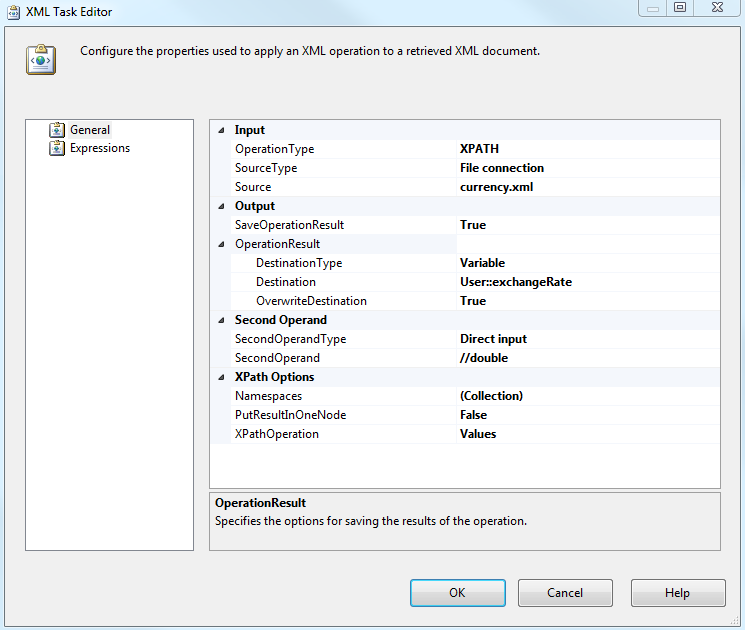
Using an XML task we extract only the values and store it into a variable type object. Use the below configuration:


3. Retrieving Currency CRM GUID

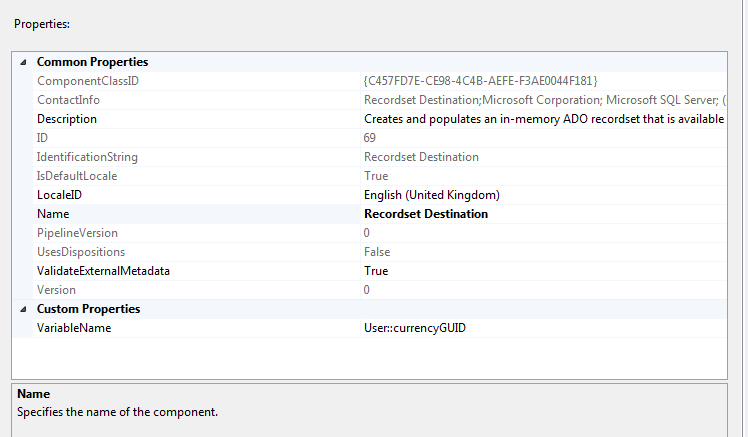
We need a new Data Flow task to use the kings ways software CRM component to retrieve the 'transactioncurrencyid' using FetchXML and then store it in a variable type object using the Recordset Destination task


4. For each loop container
As we storing the variable as an array of objects I'm using a foreach loop to retrieve the content of each index.


5. Script Task

The script it's essentially building a flat .txt file which will store the relevant information to be used later as the input columns when updating CRM via the Kings way software component.

Select the variables we created above on the read only variables field, when you done click 'Edit Script'


The following code it's creating a .txt file on the C:\ drive with the variables information:


6. Update CRM
We load the flat file confirm we have an exchange rate column and the CRM GUID and link it to the KingsWay Software component to update CRM using the API.


And it's done!

Conclusion
Hope you enjoyed the concept it's really that easy and straight forward. You can deploy this package on any SQL server that has the SSIS component installed, you don't need to install it on your CRM SQL server and this is a great advantage because you not impacting performance on your CRM SQL server.

Schedule the package to run on a specific interval as per your requirements and voilà you get your exchange rates matching daily market rates.


Wednesday, 18 September 2013

Dynamics CRM 2011 Sorting Options sets alphabetically

I was recently working with a custom options set solution which renders options sets as multi select picklists, the solution is here:
http://blog.slalom.com/2013/01/23/multi-select-option-sets-part-2/

I came across a rather unpleasant reality on CRM options sets which is doing the right thing however causing a bit of a maintenance overhead if you want to extend CRM into other areas.

if we retrieve an option set with the below code:
returns an array of objects which may look like this:


Notice the sorting is done on the index value. Imagine you have 50 or more entries in one option set and once in a while you need to add a new entry and remove others, are you manually moving all index values to sort the option set alphabetically? if you have another entry starting with letter "A" then you need to change all none "A" to + 1 in the index value.
This would be painful and time consuming. I'm sharing a small piece of code that can do this for you if you face the same issue:

The results would then be sorted alphabetically:


Notice the index values now are not sequential and the text entries are alphabetically sorted.

Hope this was helpful, please leave your feedback.


Monday, 9 September 2013

Dynamics CRM 2011 updating user settings using SSIS

Have you ever had the need to set user preferences in bulk and you are unable to do so? This article will show how you could use SSIS to update user preferences in bulk.

On this tutorial I will be changing users currency settings to EUR. The following is an overview of the process: This time I'm using the CRM SSIS component from
http://www.kingswaysoft.com/products/ssis-integration-toolkit-for-microsoft-dynamics-crm
  1. Export users to Excel
    1. will give an example how we could also use a SQL query to avoid the use of Excel
  2. Get the CurrencyId using FetchXml and populate this data into Excel
  3. Use the Excel as a data source  to update CRM user settings

1. Export Users to Excel [data_source]
First step is to export the users you want to update the currency into Excel to be used later as a data source for the final update.

I create an excel file with two column headers transactioncurrencyid and systemuserid.
I then use the SSIS CRM component to run the a FetchXml query and populate the excel file.

Note: It's on this particular FetchXML query that you define what users you want to export to later on update their currency settings, you could filter by their address_city, country etc...


and you should end up with something like this:


1.1 Using SQL Queries
you can bypass the use of Excel and go straight to source to destination without the time consuming excel process:

We use the OLE DB Source component to connect to our database and run the query we specify below in the screenshot:

Note: we are using Filtered Views this is a supported query and you should be using Filtered views as possible.


if you look at the columns mappings we are good to go:


we would end up with only one data flow process the first of the 3 data flow processes below. I've included the other 2 so we could look at the image and compare what happens with the Excel as a data source and with the SQL query as a data source.


Using SQL queries reduces the overhead of excel and is a quicker process, however Excel has the advantage of sharing work with multiple colleagues and mapping data.


2. Get EUR currency ID
To get the Euros currency ID we will use the FetchXML Builder tool


We copy the transactioncurrencyid from the results above onto the excel spreadsheet and you should have something like this:


3. Update CRM user settings with SSIS
Using the Excel file as a data source we input this data into the KingsWaySoft CRM SSIS destination component and update those CRM users in the spreadsheet


In the columns section make sure you map the two fields to the correct columns, transactioncurrencyid and systemuserid


Conclusion
We looked at how to use SSIS to update user preferences in bulk, looked at using Excel as a data source and how to build SQL queries to speed up the update process.

I hope this was helpful and please leave your feedback.


Wednesday, 7 August 2013

Dynamics CRM 2011 Optimize built-in maintenance jobs

I've noticed the maintenance job "Cleanup Workflows" was taking considerably more time to execute as my AsyncOperationBase table grows after some investigation I've noticed CRM needed a tweak to optimize this maintenance job.

The "Cleanup Workflows" maintenance job like the other CRM maintenance jobs are based on SQL storage procedures that are executed by the Asynchronous Maintenance service on a scheduled basis. This particular maintenance job was slowing down on this particular storage procedure: p_CleanupInactiveWorkflowAssemblies

which looks like this:


There is a select with a where clause on the AyncOperationBase table

This select takes around 3min o execute on my live environment (this was a lot longer on my uat and dev systems) with 3.5million records which I think is not that many records, this is because the column OwningExtensionId and OperationType are not indexed, out-of-the-box and up to RU14 it does not create the necessary indexes to make this query run faster you have to create it yourself.

I've created the following index:

and the query takes now 0seconds to be executed.

Hope this was helpful.

Tuesday, 23 July 2013

Dynamics CRM 2011 Outlook Client Optimization

With the introduction of CRM rollups e.g. RU12 with cross browser support I've noticed the CRM Outlook client is struggling and crashing more often possibly due to all the new changes in the new rollups a number of tweaks and optimizations are available to improve the user experience when using the CRM outlook client.

Making CRM 2011 Outlook client stable
I've noticed Outlook clients started to crash randomly after the deployment of RU11 analysing Outlook.exe crash dumps revealed the issue was on SQL CE 3.0. A new version of SQL compact edition is available version 4.0 which as documented, handles memory better eliminating (or near) the out-of-memory crashes in Outlook while working with the CRM Outlook client.

The following Microsoft KB article documents how to upgrade SQL CE 4.0:
http://support.microsoft.com/kb/2616319

The process as per KB article:
  1. Install SQL CE 4.0
  2. Delete the CRM 2011 client current configuration and delete any cashed databases
    1. C:\Users\[user]\AppData\Local\Microsoft\MSCRM
      1. delete all *.sdf files
  3. EDIT the configuration wizard config file to load the SQL CE 4
  4. EDIT the  CRM client startup config file to load new assemblies.
  5. Open Outlook and confirm the new SQL CE is loaded as per below screenshot


However I found that on random machines the configuration wizard failed to connect to CRM, the reason behind this was related with a configuration line on the configuration wizard config file:

<system.net>
    <defaultProxy useDefaultCredentials="true" />
  </system.net>


Removing the above code allowed the connection to be made. If you don't want to remove the above code from every user the following hotfix will resolve the issue:
CRM 2011 client x64
If you have the opportunity to instead of 32bits use the 64bits version of Office, then it would be strongly recommended to use the x64 it adds extra stability to Outlook and CRM client, as 64 bits has more room for memory allocation.

  Registry Keys
 As per the following KB http://support.microsoft.com/kb/2585157 the below registry keys will improve performance:

HKEY_CURRENT_USER\Software\Microsoft\MSCRMClient
NotificationPollInterval
set to 3600000 (Decimal)
StateManagerPollInterval set to 10 (Decimal)
ActiveCachesUpdatingPeriodMilliseconds set to 3000000 (Decimal)
IncrementalDataCachesInclusionUpdatingPeriodMilliseconds set to 6000000 (Decimal)
IncrementalDataCachesExclusionUpdatingPeriodMilliseconds set to 6000000 (Decimal

HKEY_CURRENT_USER\Software\Microsoft\MSCRMClient\{ORGGUID}
TagPollingPeriod set to 600000 (Decimal)
TagMaxAggressiveCycles 0
A couple of registry keys to consider as well:
HKEY_CURRENT_USER\Software\Microsoft\MSCRMClient
DisableMapiCaching 1
AddressBookMaterializedViewEnabled 1

CRM Settings
From CRM settings > administration there is a few settings that you should also consider to improve user experience:
System Settings > Outlook Tab you want to increasing the default values to reduce overhead on the server and on the user side:

Privacy Settings > Error Reporting here you can configure centrally all users settings on how to deal with Microsoft errors, the advantage here is that you reduce the noise on the user side.

Conclusion
I've covered a few known optimizations, the most impact is SQL compact edition 4 so I strongly recommend you upgrading your outlook client deployment. I hope this was helpful please leave any questions or feedback.