Monday, 19 May 2014

Dynamics CRM 2013 tips & Tricks

Tips & tricks for this week on CRM 2013 performance built-in tools: CRM 2013 comes with a hidden gem that can report on form loading times and a breakdown by component as well, you can access this performance report using the following shortcut after the form has been loaded:

  •  CTRL+SHIFT+Q
It may take a few seconds to appear, the below window should appear:


at the bottom of the report you also have a link to the known diagnostics page:


Hope this was useful.  If you need advise on performance optimization please feel free to contact me on nuno.m.costa@gmail.com


Thursday, 8 May 2014

Dynamics CRM Moving reports to new SSRS server

Moving CRM reports in particular external reports (if you use iframes) can become a time consuming task, however there a few tools that can make the process a lot easier which I would like to share with you.

Moving CRM reports to a new SSRS server
If you want to move all existing CRM reports users created in CRM the process is simple and takes a few steps and it's available within CRM. There are very good articles on other blogs on how to do this step-by-step, you can move or republish the reports using the following 3 methods:

  1. Using the Report tool PublishReports.exe on the Dynamics CRM Tools folder
  2. Installing the Report extensions connector (it will republish all reports)
  3. Or when you update the SQL report server URL via the deployment manager
The CRM reports under the customReports folder are stored in the database hence you can publish them at any time using the above methods.

Moving CRM external Reports (e.g. used with iframes or scheduled reports)
For external reports you would normally move it manually as there is no facilities in SSRS or CRM tools to do this for you, however there is a really great tool to do this for us:
https://code.google.com/p/reportsync/

When you run the tool you connect to the source SSRS server at this point you should start mapping data_sources from source to destination otherwise the reports will get the default data_source at destination when synced. You start by creating all data sources on the destination SSRS server exactly as the data_sources on the source SSRS server and then map them accordingly.

If you make this your first step you don't need to manually change all reports data_sources later on the destination SSRS server.


On the below screenshot connect to both source and destination report servers and choose the folder or the reports you want to move and select a destination folder click Sync


If you expand the folder, below you should see reports popping-up.


Hope this was helpful.


Friday, 25 April 2014

Dynamics CRM Improve performance by 40% over WAN links

It can be challenging providing good response times in CRM Environments distributed across multiple regions/countries with one location centrally hosting all the CRM servers. Public/private WAN links already saturated with traffic and high latency could contribute to poor performance.

The solution I'm about to blog is based on real-world numbers and tested on a large enterprise with offices in multiple regions. We not only improving load times by 40% but reducing network traffic over WAN links by around 30%. The solution uses F5 Big-IP devices to load balance/compress traffic between sites using>

  • F5 BIG-IP LTM normal compression
  • F5 Web accelerator module for caching

I'm not selling F5 products but is the product I've used and proven to provide big improvements over WAN links. I have tried using RiverBed devices but did not deliver performance improvements.

This article assumes you have a basic understanding of F5 load balancers and how to setup:

  • VIPs
  • Pools
  • Assign nodes to pools

ps: If you need assistance please contact me, I can assist with configuration and implementation.

In a typical large enterprise environment you have multiple sites with one site hosting a primary application and other geographically dispersed sites consuming it over WAN links, same with Microsoft Azure when you deploy a service you choose which datacenter you want that service to live on while your users will consume the application/service over WAN links between your office and the Azure data center.

Lets see a typical site-to-site communication:


On the above screenshot we have London the main site with a F5 load balancer device caching and compressing all the content in the London site only. Data transferred over the WAN link is compressed by the F5 but cached content still needs to be transferred across the WAN link.

To improve the performance we need to reduce the amount of data round-trips over the WAN link, we achieve this by placing another F5 load balancer in the Sydney site and making sure that all users in the Sydney site are routed to the Sydney F5 when requesting the crm.mydomain.com application DNS. The local F5 in Sydney will start caching content locally and compress data between F5's but essentially the massive improvement comes from the local F5 being able to cache static content locally and providing these content much quicker to local users, the below screenshot illustrates this scenario:


On the above illustration the Sydney local F5 is now caching content that otherwise would need to travel over the WAN link.

The end result is illustrated on the below screenshot:


As I've mentioned above the solution uses F5 LTM normal compression features but also the web accelerator module:

I'm assuming you have your:

  1. London F5 VIP set up with normal compression 
  2. A Pool with your CRM front-end servers configured
To achieve the best caching and performance results I'm using the web acceleration module, I'll go through how to set up a web acceleration profile but a very high-level. Before going through the web acceleration steps first we need to set up the Sydney F5 VIP same as above item 1 and 2 in the Sydney F5 you configure:
  1. Sydney F5 VIP with normal compression
  2. A pool with the London F5 VIP (make note here that is not the front-end servers but the VIP)
Below is a screenshot of what should look like the VIP HTTP, compression and caching profiles on both VIPS London and Sydney:


Note the web acceleration profile to create this profile you need to:

  1. Create a web acceleration policy
  2. Create a web acceleration app and link to the policy above
  3. Create a F5 web acceleration profile which enabled the APP

Web Acceleration Policy:


Web Acceleration app:


Web Acceleration Profile:


Linking the app with the profile:


Need More information?
I hope the article was useful, the concept is simple to implement but requires good knowledge of authentication protocols and familiarity with F5 Load balancers.

If you need assistance with configuration and implementation please contact me on: nuno.m.costa@gmail.com

Please leave your feedback.


Wednesday, 23 April 2014

Dynamics CRM 2013 Yammer Configuration On-Premise


Dynamics CRM 2013 gives you the possibility to integrate CRM 2013 with Yammer enterprise social networks, this feature On-premise only works with the latest RU2 v2 patch you need to make sure you have version 6.0.2.51 installed on your deployment manager.

First things first download RU2 v2 and install it on your CRM environment.
http://www.microsoft.com/en-us/download/details.aspx?id=42272

Authorize the Microsoft Dynamics CRM to use Yammer
Navigate to Settings > Administration > Yammer

Click Continue in the disclaimer window.
On the next page click on the Hyper link on step 1. Authorize Microsoft Dynamics CRM OnPremise to connect to Yammer:


You will get prompted for your yammer credentials you must be full yammer admin and yammer must be an enterprise version. The below pop-up window will appear to type your username and password. You may get the below error:

The remote name could not be resolved: www.yammer.com


the above error relates to the fact that my servers are behind a proxy and don't have direct internet connection there are two possible solutions for this:
  • You use hosts file and point yammer.com to the external IP (this will depend on your network set up)
  • Configure IIS web.config file to use your proxy (Recommended)
To fix the issue Navigate to your CRM website under: 
C:\Program Files\Microsoft Dynamics CRM\CRMWeb 

Edit the web.config file in notepad and just before the closing tag: </configuration>
copy and paste the below code:

<system.net>
  <defaultProxy>
    <proxy proxyaddress="http://myProxyIP:80" 
           bypassonlocal="true" />
  </defaultProxy>
</system.net>

You need to do this on all your front-end servers. if you manage to authenticate and approve CRM in yammer you get a Congratulations message at the bottom of the screen:


Enabling Yammer feeds
Yammer now becomes the default feed in the dashboard page but in order for users to access the yammer feeds they need to verify their account:


Note on the right-hand side I follow 4 opportunities and 1 organisation this I believe is a glitch/bug because those records are for activity feeds after I've followed the first opportunity since yammer feeds were enabled those stats were reset to 1 to the new opportunity I've just followed.

After your account is verified you should see the below screenshots:


and the yammer feed on your dashboard home screen, note that this feed is your global feed:


Just after the initial set up I see the below message when accessing opportunities:


Following the opportunity you then get access to the yammer feeds:


For every record you would like to share in yammer or access the yammer feeds of that record you will need to follow it.

Conclusion
I hope this was useful. I don't think yammer on RU2 v2 is free of bugs there is more to be done to improve this integration


Wednesday, 5 March 2014

Dynamics CRM 2013 Email To queue - Sink Mailbox with Exchange Server-side Synchronization

In CRM 2011 if you want to set up a queue to receive all emails sent to a specific mailbox also known as 'sink mailbox' you needed to configure the email router to process emails for specific queues it was a manual process that had to be configured on two different components CRM and Email router.

On CRM 2013 using Exchange Server-Side Synchronization to set up emails to queue is a straight-forward process:

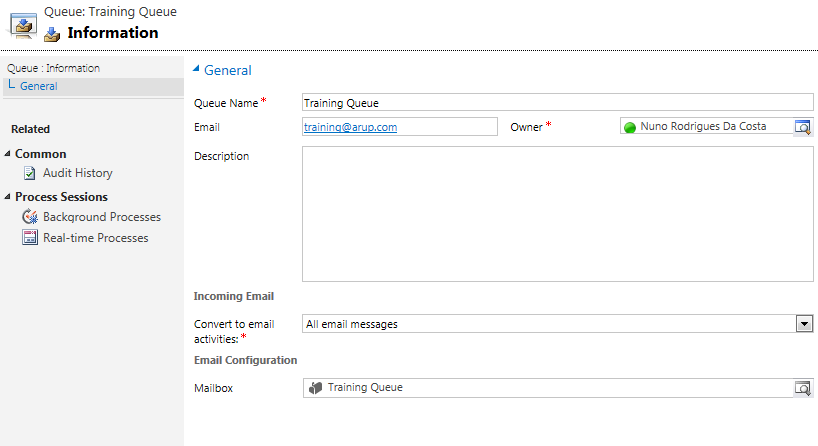
  1. Create the queue (set an email address)
  2. Configure the Mailbox (for server-side synchronization)


1. Create the Queue
Set the email address that you want to monitor for emails.


2. Configure The Mailbox
Configure the Mailbox for Server-Side Synchronization you also need to specify a working Server Profile
Note: the service account configured on the Server Profile must have impersonation rights for the mailbox we want to monitor


Check the Queue


Hope this was helpful
Please let me know if you need assistance you can contact me on: nuno.m.costa@gmail.com


Friday, 28 February 2014

Outlook 2013 disabling CRM client based on loading time

If you going to roll-out Outlook 2013 and you using CRM Outlook client you should be aware of a new feature enabled by default on Outlook 2013 which will certainly cause conflicts.

Outlook 2013 ships with a feature that can disable add-ins on-the-fly based on loading times. I found that my CRM client was disabled because it loaded in 1.8 seconds:


To avoid this happening and make sure that the "always enable this add-in" is enabled by default for the CRM Outlook client we can add a registry key with the CRM add-in name under a registry folder with name: DoNotDisableAddinList

HKEY_CURRENT_USER\Software\Microsoft\Office\15.0\Outlook\Resiliency\DoNotDisableAddinList


The name of the add-in crmaddin.addin can be found on the below registry key

HKEY_CURRENT_USER\Software\Microsoft\Office\15.0\Outlook\Addins


Hope this helps.
If you need assistance please contact me on nuno.m.costa@gmail.com


Tuesday, 28 January 2014

Dynamics CRM 2013 ADFS 2.1 with windows 2012 - CRM Outlook client issue

If you configuring ADFS with Windows 2012 you will find that you can't configure the CRM Outlook Client. This is due to a bug in ADFS 2.1 which does not correctly set it's ADFS ActiveMexEndPoint to the correct location.

When you attempt to configure the CRM Outlook client you get:


14:44:16|  Error| Error connecting to URL: https://mycrm.com:444/XRMServices/2011/Discovery.svc Exception: Microsoft.Crm.CrmException: Authentication failed
   at Microsoft.Crm.Outlook.ClientAuth.ClaimsBasedAuthProvider`1.AuthenticateClaims()
   at Microsoft.Crm.Outlook.ClientAuth.ClaimsBasedAuthProvider`1.SignIn()
   at Microsoft.Crm.Outlook.ClientAuth.ClientAuthProvidersFactory`1.SignIn(Uri endPoint, Credential credentials, AuthUIMode uiMode, IClientOrganizationContext context, Form parentWindow, Boolean retryOnError)
   at Microsoft.Crm.Application.Outlook.Config.DeploymentsInfo.DeploymentInfo.LoadOrganizations(AuthUIMode uiMode, Form parentWindow, Credential credentials)
   at Microsoft.Crm.Application.Outlook.Config.DeploymentsInfo.InternalLoadOrganizations(OrganizationDetailCollection orgs, AuthUIMode uiMode, Form parentWindow)


In CRM the information for the ADFS ActiveMexEndpoint it's hold on the FederationProvider table column: ActiveMexEndPoint this information is written every time you configure Claims-Based Authentication. On the MSCRM_CONFIG database run the following command:

select * from FederationProvider

The default url looks like this:
https://myadfs.domain.com/adfs/ls/mex

And you need to update it to:
https://myadfs.domain.com/adfs/services/trust/mex

To udpate the ActiveMexEndpoint run the below query on your SQL database MSCRM_CONFIG database.

update FederationProvider
set ActiveMexEndpoint = 'https://myadfs.domain.com/adfs/services/trust/mex'

Alternatively you could run the following Powershell:
http://support.microsoft.com/kb/2828015/en-gb? 

You can also apply a hotfix released specifically to correct this issue:
http://support.microsoft.com/kb/2827748/en-us 


If you need assistance configuring ADFS in your company feel free to contact me on: nuno.m.costa@gmail.com